A clearer work record

How Track Pilot AI Works

Set up the work, record time, review the context and prepare a useful report.

The Track Pilot AI flow

Four connected moments from setup to insight.

Each stage adds useful context to the next. That helps teams spend less time reconstructing what happened and more time acting on a record they can review.

01

Configure

02

Track

03

Review

04

Use

See the workflow

From a blank workspace to a reviewable result

The sequence stays simple for the person doing the work and useful for the people reviewing what was recorded.

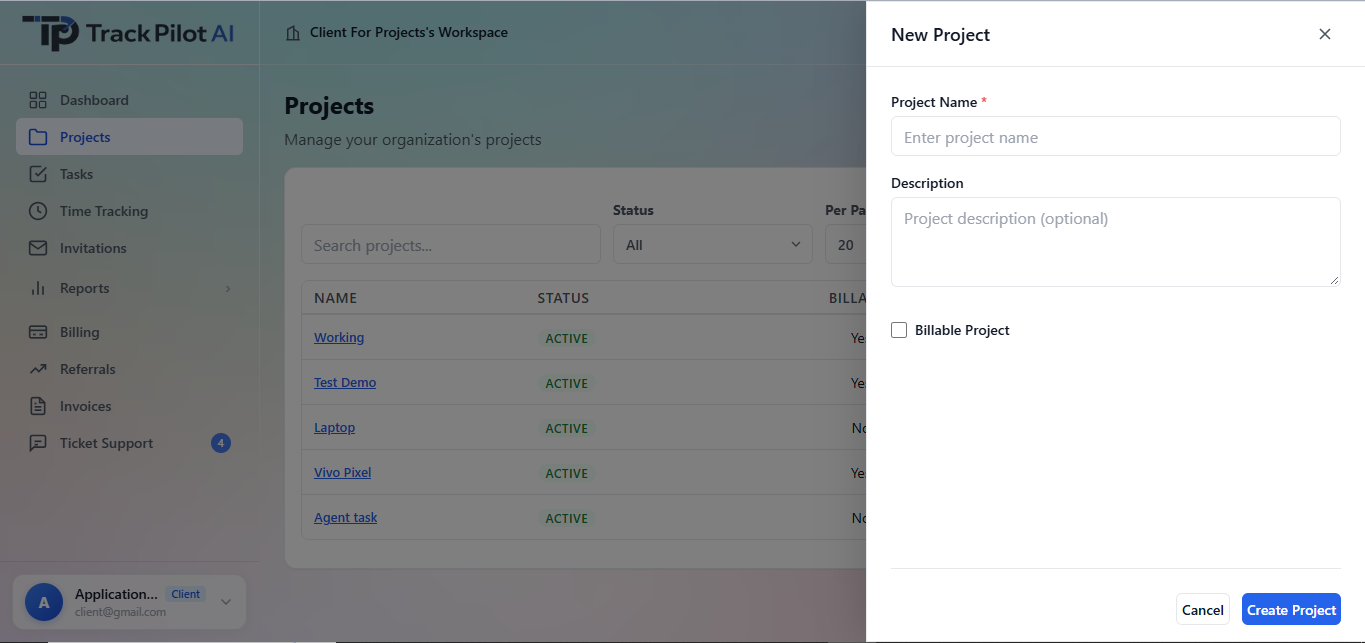
Track Pilot AI project workspace with the New Project panel open

Give each project a clear home before work starts.

Start with context

01

Configure the workspace and tracking preferences

Create the projects, tasks, roles, and review expectations your team already uses. Set the available tracking and activity preferences before work begins so each time entry has a clear place to belong and a review path people understand.

  • Set up projects and task context
  • Choose the available tracking and activity preferences
  • Define access, review, and approval expectations
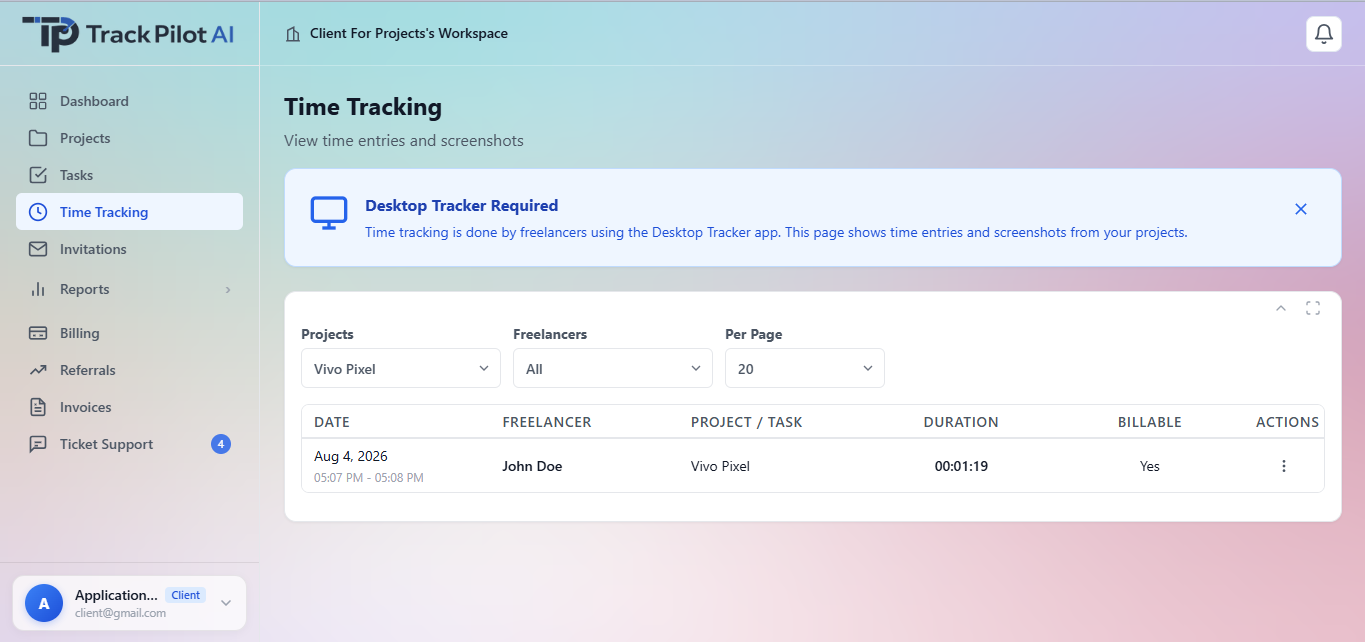
Track Pilot AI Time Tracking screen showing a project time entry

See recorded work in the same project context where it belongs.

Capture the work

02

Track active work against the right project

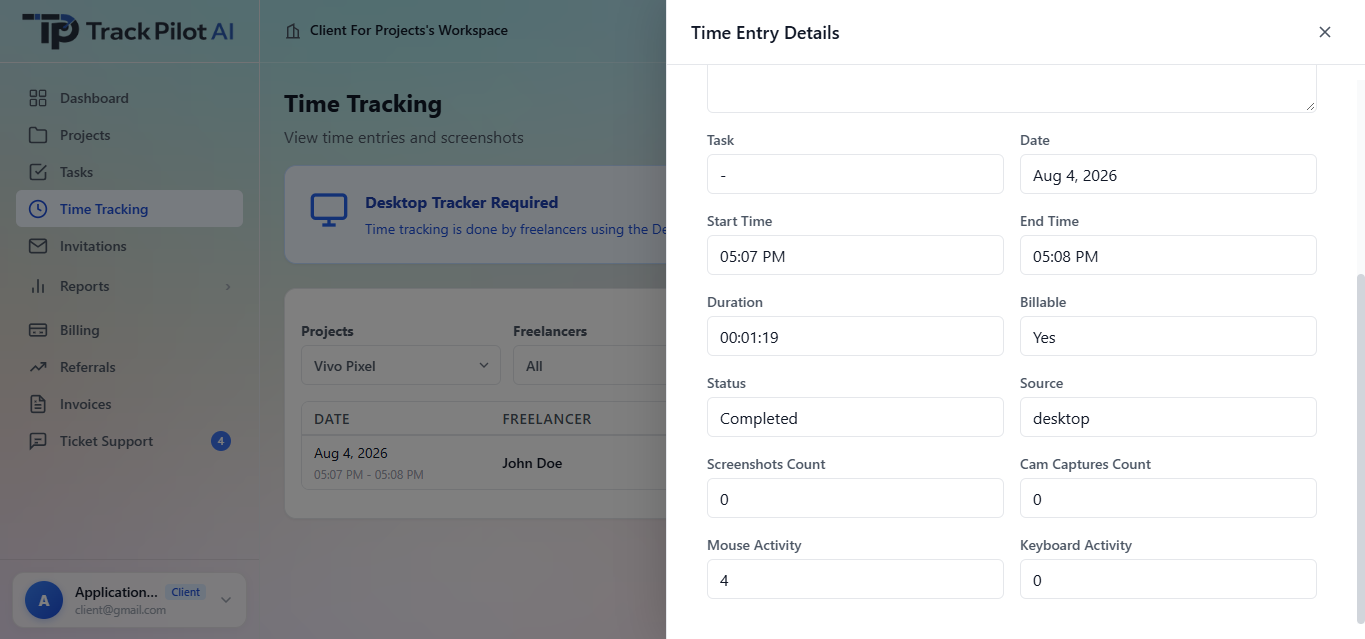
Team members record work as it happens using the supported time-tracking workflow. Project and task context stays connected to the entry, so the record is useful beyond the moment it was created.

  • Record time against a project or task
  • Keep active work connected to its context
  • Use optional activity evidence where configured
Track Pilot AI Time Entry Details panel showing duration and review context

A reviewable record makes the next decision easier.

Review the record

03

Check the context before it moves forward

Review the resulting entry, its duration, and the available context before relying on it for reporting. When something needs attention, use the supported correction or approval workflow to resolve it clearly.

  • Inspect the time entry and available details
  • Resolve edits through the supported workflow
  • Approve the record when it is ready for the next stage
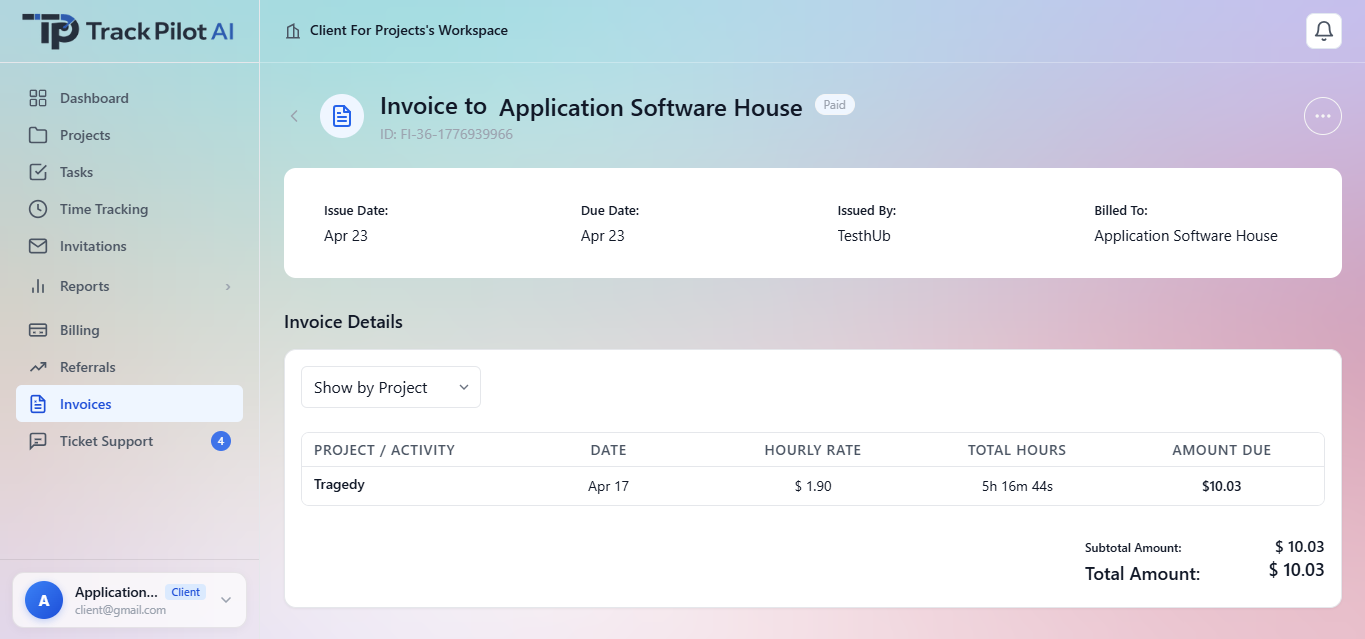
Track Pilot AI invoice details showing project hours and amount due

Carry reviewed project hours into the conversations that matter.

Use the outcome

04

Turn reviewed hours into useful outcomes

Once the record is ready, use approved time in the reports, client conversations, planning, and supported billing workflows that fit your team. The final step connects day-to-day tracking with the decisions it is meant to support.

  • Review totals by project or work context
  • Use clear hours in planning and client updates
  • Connect approved time to supported billing workflows

Keep the next step clear

Every step leaves a useful trail.

Connect the workflow to the feature that fits your next question: organize work in projects and tasks, inspect activity context, review timesheets, or explore the current plans.

Explore Track Pilot AI for your workflow

Review the features and current plans, or contact the team with a specific requirement.